顯示具有 天線測試 標籤的文章。 顯示所有文章

2023年10月17日 星期二

Vaunix Digital Attenuator control tool

在之前文章中, 測試WiFi的環境中用到Vaunix的衰減器, 這次功能在提升變更為四路獨立切換

的LDA-908V-4

之前相關文章:

c# Ixchariot throughput 測試 

WIFI RvO TEST TOOL FROM C#


LDA-908V-4

LDA-908V-4
Features/Benefits
▪ USB and Ethernet Interfaces
▪ Reliable and Repeatable solid state digital
attenuation
▪ Includes GUI, Windows and Linux SDK,
LabVIEW driver
▪ Configurable Static IP or DHCP
▪ Password protected Ethernet interface
▪ Programmable attenuation ramp and fading
profiles
▪ Operate multiple devices directly from a PC
or self powered hub
▪ Easily portable USB powered device
Applications
▪ Wi-Fi, Wi-Fi 6E, 3G, 4G, 5G, LTE,
Microwave Radio Fading Simulators
▪ Engineering/Production Test Labs
▪ Automated Test Equipment (ATE)

200 – 8000 MHz High Resolution Digital Attenuator
The LDA-908V-4 offers both USB and Ethernet interfaces. The USB port uses a native HID interface to avoid the difficulties inherent in using older serial or IEEE-488 interfaces implemented over USB. As a result, Lab Brick users can get to work faster without having to install kernel level drivers, and Lab Brick devices can be easily used on any system that supports USB HID devices, including low cost embedded computers using Linux or similar operating systems. The Ethernet interface is configurable for Static IP or DHCP with the ability to assign the HTTP port for extra security. 

The LDA-908V-4 Digital Attenuator is a highly accurate, bidirectional, 50 Ohm step attenuator. The LDA-908V-4 provides calibrated attenuation from 1 to 8000 MHz with an amazing step size of 0.1 dB and typical accuracy <0.25 dB over 90 dB of control range. The attenuators are easily programmable for fixed attenuation, swept attenuation ramps and fading profiles directly from the included Graphical User Interface (GUI). Alternatively, for users wishing to develop their own interface, Vaunix supplies LabVIEW drivers, Windows API DLL files, Linux drivers, Python examples and much more.
提供c sharp的sample code
Control program written by myself
設定畫面
執行畫面


2023年3月28日 星期二

Rohde&Schwarz FSV Signal Analyzer control by C#

在之前文章 OTA天線測試系統中, 用到R&S的FSV Signal Analyzer. 最近又要開始OTA的場型測試所以就用C#寫一個比較容易控制的介面如下圖

圖一: SA控制介面

在設計控制儀器界面的時候, 大家必須先將其使用手冊研讀清楚. 能夠自己手動操作出結果就能夠用自動控制的方式呈現這點非常重要. 再來就必須將remote control 的指令寫入介面的控制裡面.

控制介面分為三部分: 連接, 設定儀器和讀取資料, 這樣的設計對Spectrum Analyzer 來說應該都適用

圖二: 操作示範圖
圖三: SA實際畫面

實作影片 


2023年3月13日 星期一

c# ping application

Ping 是 dos cmd 網絡實用程式,將訊號透過網絡傳送至另一部電腦,然後另一部電腦再將其訊號傳回。 這種訊號以毫秒(ms) 為量度單位,讓你知悉將數據封包由電腦傳輸至互聯網伺服器後再傳回所需的時間。 此量度值是指電腦與其伺服器之間的延遲。
在這一篇文章中  WIFI RvO TEST TOOL FROM C# 用到了ping的功能去察看跟DUT_AP的連線情況
圖一: Ping Function

public bool Ping(string nameOrAddress, string timeout)
    {
        bool pingable = false;
        int pingcnt = 0;

        try
        {
            string pingrst;
            Process p = new Process();
            p.StartInfo.FileName = "C:\\Windows\\System32\\cmd.exe";
            p.StartInfo.UseShellExecute = false;
            p.StartInfo.RedirectStandardInput = true;
            p.StartInfo.RedirectStandardOutput = true;
            p.StartInfo.RedirectStandardError = true;
            p.StartInfo.CreateNoWindow = true;
            p.Start();
            p.StandardInput.WriteLine("ping -n 6 " + nameOrAddress + " -w " + timeout);
            p.StandardInput.WriteLine("exit");

            CommonData.pFindStr.Source = p.StandardOutput.ReadToEnd();

            if (CommonData.pFindStr.Source.IndexOf("TTL=") != -1)
            {
                pingcnt = SubstringCount(CommonData.pFindStr.Source, "TTL=");
                if (pingcnt > 2)
                {
                    CommonData.WriteMessage(CommonData.richtextbox, DateTime.Now.ToString() + CommonData.pFindStr.Source, "", Color.Blue, Color.Green);
                    pingrst = "連接";
                    CommonData.WriteMessage(CommonData.richtextbox, pingrst, pingcnt.ToString(), Color.Blue, Color.Green);
                    pingable = true;
                }
            }
            else if (CommonData.pFindStr.Source.IndexOf("Destination host unreachable.") != -1 || CommonData.pFindStr.Source.IndexOf("一般失敗") != -1)
            {
                //一般失敗
                this.GridData.WriteMessage(this.GridData._TPars.richtextbox, DateTime.Now.ToString() + CommonData.pFindStr.Source, "", Color.Blue, Color.Green);
                pingrst = "無法到達目的主機";
                this.GridData.WriteMessage(this.GridData._TPars.richtextbox, pingrst, "", Color.Blue, Color.Green);
            }
            else if (CommonData.pFindStr.Source.IndexOf("Request timed out.") != -1 || CommonData.pFindStr.Source.IndexOf("要求等候逾時") != -1)
            {
                //要求等候逾時
                this.GridData.WriteMessage(this.GridData._TPars.richtextbox, DateTime.Now.ToString() + CommonData.pFindStr.Source, "", Color.Blue, Color.Green);
                pingrst = "超時";
                this.GridData.WriteMessage(this.GridData._TPars.richtextbox, pingrst, "", Color.Blue, Color.Green);
            }
            else if (CommonData.pFindStr.Source.IndexOf("Unknown host") != -1)
            {
                this.GridData.WriteMessage(this.GridData._TPars.richtextbox, DateTime.Now.ToString() + CommonData.pFindStr.Source, "", Color.Blue, Color.Green);
                pingrst = "無法解析主機";
                this.GridData.WriteMessage(this.GridData._TPars.richtextbox, pingrst, "", Color.Blue, Color.Green);
            }
            p.Close();
        }
        catch (Exception e)
        {
            CommonData.WriteMessage(CommonData.richtextbox, e.Message, "", Color.Red, Color.Green);
        }
        return pingable;
    }

2023年3月2日 星期四

WIFI RvO TEST TOOL FROM C#

繼上篇c# Ixchariot throughput 測試文章後, 整合整個測試環境構成一個包含角度, 用衰減器

(LDA-908V 200~8000MHz SMA 90dB,0.1dB/Step USB Digital Attenuator)模擬距離的W-Fi測試系統

RvR(Range versus Rate), 以可程式衰減器模擬距離並配合量測系統,進而得到衰減值(距離)和Throughput之對應資料

RvO(Rate versus Orientation)以程式衰減器模擬距離並搭配轉檯,配合量測系統,進而得到衰減值(距離)及待測樣品角度對Throughput之對應資料

The Performance Measurement of Range versus Rate and Rate versus Orientation for Wi-Fi System

呈現待測物在各角度及不同衰減值(不同距離)Wi-Fi傳輸效能的表現.
圖一: 測試PC, 可程式衰減器, 隔離箱
圖二: 側面介面接口

待測物在不同角度的傳輸結果,也就是說,各角度涵蓋面越大,則代表待測物較不受到因不同擺放位置而影響無線網路傳輸效能。
圖三:隔離箱內部待測物, 轉台及陪測天線


測試程式規劃:
衰減器:可控制四個衰減器.依照start衰減值開始每個step衰減值end衰減值為一個Step角度迴圈
旋轉角度:start, end, step. 依照start角度開始, 每個step角度執行衰減值一迴圈到end角度

圖四: 測試角度, 衰減值設定
圖五:測試Tool執行畫面
圖六: RX測試數據雷達圖

圖七: TX測試數據雷達圖


2023年2月14日 星期二

Netsh的網卡Enable與Disable

在上一篇網卡的Enable與Disable方法中, 在Intel Wi-Fi 6 AX200 160MHz的網卡上控制會有問題.

所以就試著用Netsh 去控制, 結果很幸運可以動作

圖一: 手動測試Netsh
用C# 寫的函式 
public void Enable(string interfaceName)
{
        try
        {
            var process = new System.Diagnostics.Process
            {
                StartInfo = new System.Diagnostics.ProcessStartInfo
                {
                    FileName = "C:\\Windows\\System32\\netsh.exe",
                    Arguments = "interface set interface \"" + interfaceName + "\" enable",
                    UseShellExecute = false,
                    RedirectStandardOutput = true,
                    CreateNoWindow = true
                }
            };

            process.Start();
            process.WaitForExit();
        }
        catch (Exception e)
        {
            Console.WriteLine(e.Message);
        }
}

public void Disable(string interfaceName)
{
        try
        {
            var process = new System.Diagnostics.Process
            {
                StartInfo = new System.Diagnostics.ProcessStartInfo
                {
                    FileName = "C:\\Windows\\System32\\netsh.exe",
                    Arguments = "interface set interface \"" + interfaceName + "\" disable",
                    UseShellExecute = false,
                    RedirectStandardOutput = true,
                    CreateNoWindow = true
                }
            };

            process.Start();
            process.WaitForExit();
        }
        catch (Exception e)
        {
            Console.WriteLine(e.Message);
        }
}

2022年12月19日 星期一

c# Ixchariot throughput 測試

一般網通廠在驗證產品的throughput時大部分都是用Ixchariot這套軟體去做測試

Figure1: Ixchariot
軟體架構:利用LDA-908V 200 – 8000 MHz High Resolution Digital Attenuator來模擬距離遠近, 來測試哪個衰減值throughput會減少比較明顯.
進階應用: 利用TurnTable旋轉角度檢測那個方位接收效果較差.
Figure2:LDA-908V


Figure3:TurnTable
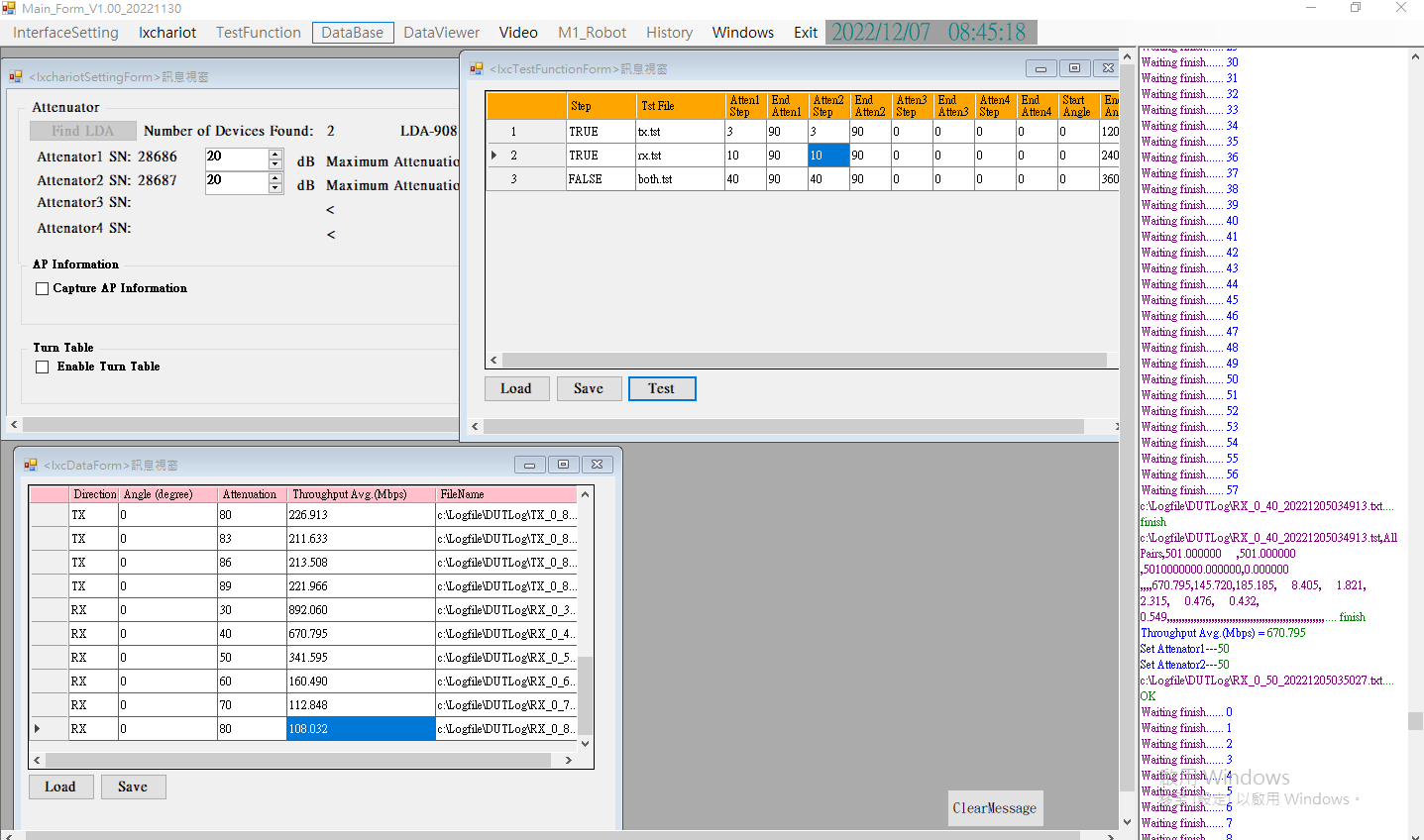
GUI部分:
在setup 頁面設定Attenuator and 開啟TurnTable控制port
Test Function頁面設定開始衰減值. 結束值和step的值
利用Ixchariot command line進行自動測試
runtst.exe test.tst test123.tst -t15 (執行IxChariot [configuration] [result] 無法執行15後結束)
fmttst -v -s test123.tst test(將result 轉成CSV檔)
Turntable 開始角度結束角度 step角度
Data 頁面會自動抓取csv輸出檔的throughput average的值
Figure4:測試GUI


2018年12月7日 星期五

OTA天線測試系統

OTA(Over-The-Air)測試是由美國無線通信協會CTIA與GCF針對無線電行動通訊裝置所制定的一套輻射性能測試,用以驗證產品在三維空間中的「輻射發射功率」與「輻射接收靈敏度」. 針對無線技術的產品設計一 OTA 測試系統, 包括 
1. 測試儀器:
2. 載具轉台:
3. 隔離chamber:
4. 測試軟體:
Architectures:
以下針對這四大項做些簡要介紹
1. 測試儀器: 因為主要是要作77G雷達天線場型的量測, 所以用
R&S®FSV40 10 Hz to 40 GHz
加上 FS-90 Harmonic Mixer 60~90GHz, 就可以測到現在77GHz Radar.

2. 載具轉台: 設計五軸(X, Y, Z, Theta, Phi) 跟 Feed 端的移動平台

3. 隔離chamber: 吸波材 absorber以77GHz 為主


4. 測試軟體:分為
a. 控制轉台跟 DUT頁面
b. 控制儀器頁面
c. 測試功能頁面
d. 資料收集頁面
e. 圖形分析頁面
f. WebCAM 監視頁面